
Webite embeding tool is a widget to add in any website (if whitelisted) to display accommodation’s fact on their own website or display page. This toold is strictly available for accommodations accounts and cannot be used by tour operators or 3rd party accounts.
How it Works :
As an accommodation company whether it’s a hotel, resort, motel or even bed & breakfast, The company definitely own a website where it displays the facilities and details of the property owned and therefore the data is written inaccurately in hardcoded webpage (most cases), therefore we provided a new method which you can use to immediately display to users the up-to-date information directly after it’s edited on the app.
The data are retrieved directly from our database and rendered into a facts sheet with your choice of layout in addition to special customization of fonts, colors, spaces… etc. as we aim to provid the maximum diverse and customizable options for each single company out there.
On this page:
1. Creating and embedding facts sheet
To successfully embed factsheet in your page of choice follow the steps:
- White list a domain for adding the facts sheet.
- Create API token associated with the white listed domain.
- Navigate to widgets and select the property.
- Customize the layout.
- Generate the link.
White list a domain for adding the facts sheet.
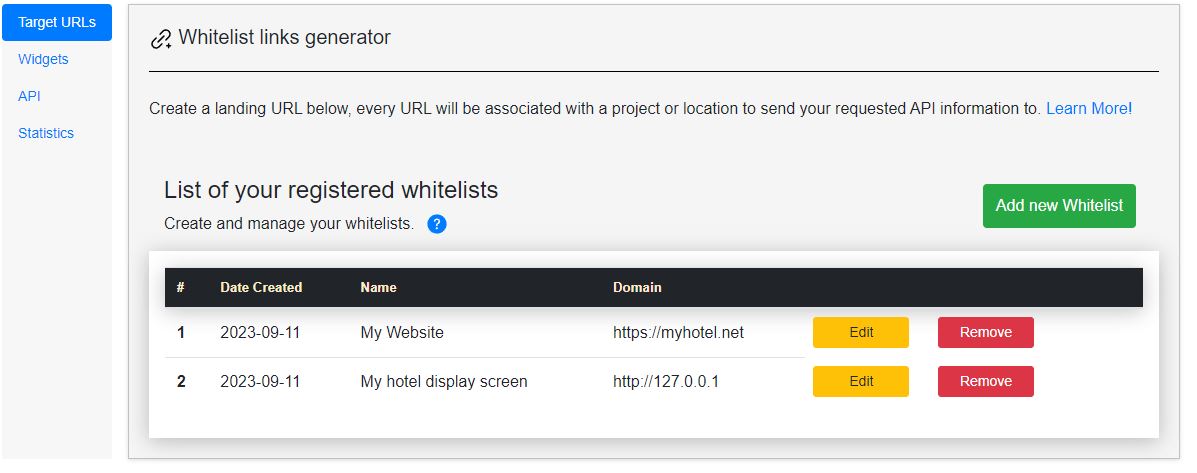
Navigate to Developer Tools > under Target URLs click the Add new whitelist button. fill in the necessary information to match your requirements.
Required * The domain field must have a valid target either a domain or an IP address of your server.
Create API token associated with the white listed domain.
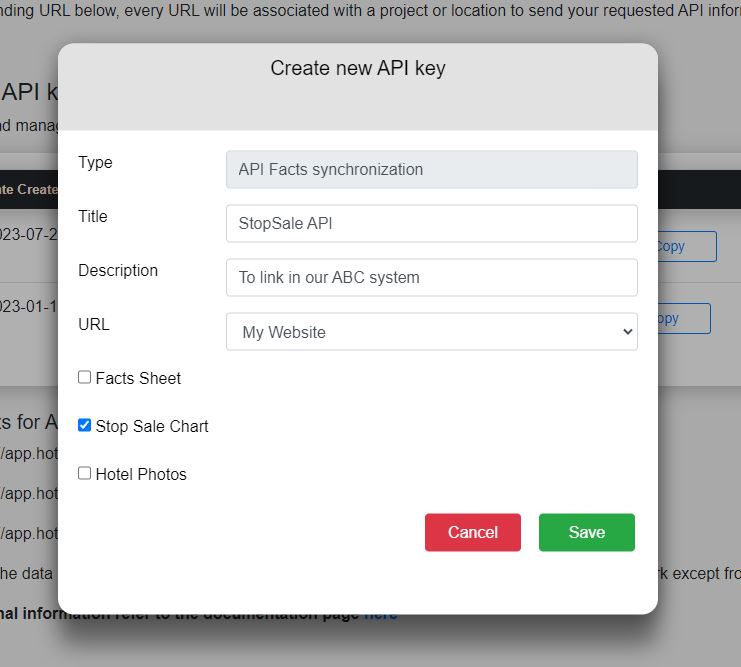
Navigate to the API tab of developer tools and click the Add button. it will open a window similar to the white listing pop up again requesting a title and description.
Fields:
URL select 1 of the entries in the White listed domains
permissions : Select what is this token permitted to do, either responsible for the everything or specific permission from Facts distribution, accommodation’s gallery or the availability chart.
Navigate to widgets and select the property.
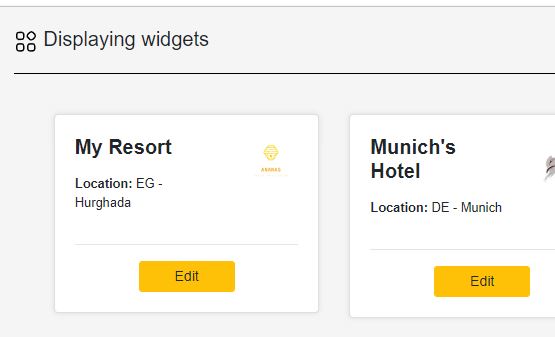
After completeing first two steps for setting a whitelist domain / IP and creating a token associated with that whitelist.
Navigate to Widget and select the propery you wish to display.
Customize the layout.
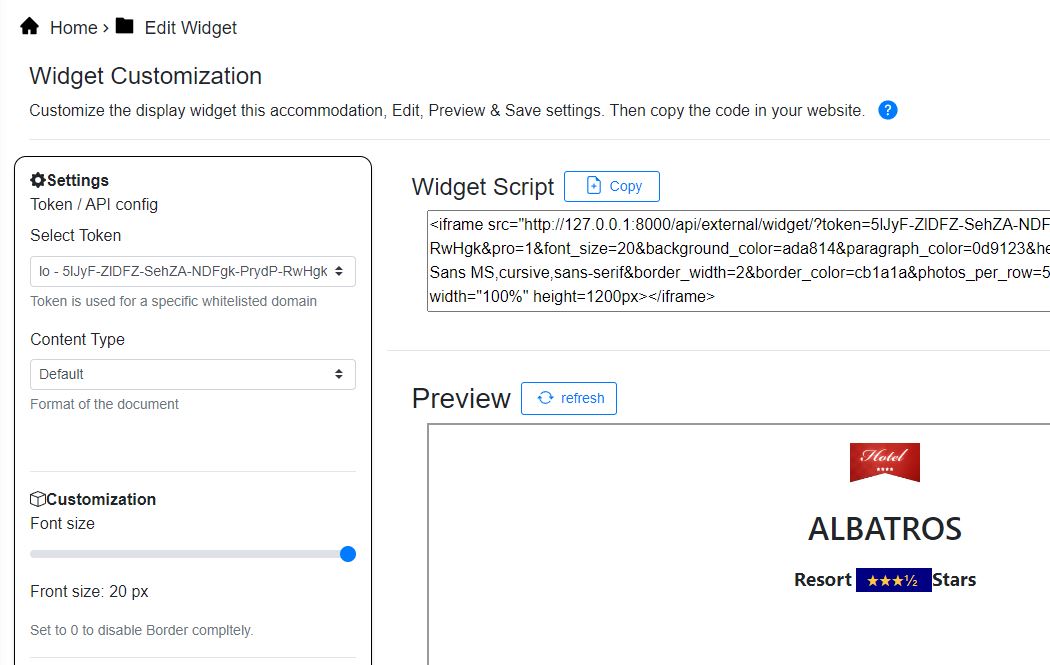
When entering the widget customization page first thing you will have to set is the correct token you will use which previously set. after setting the token and content type. feel free to customize the layout as you wish from the left side menu.
to test the changes you made click the refreshbutton.
Once done with all required changes don’t forget to click the Savebutton at the bottom o the page
Generate the link.
After saving the widget customization you can now safely copy the link to embed that script by clicking the Copybutton next to Widget Script. Past that code in a web page or URL which was previously whitelisted and it will display all the info entered in the facts app.