
The Availability Chart (commonly called Stop Sale) is how your property communicates real-time room availability to tour operators. In traditional workflows, hotels email Excel spreadsheets or PDFs every week. Operators update their systems manually. Errors happen. Overbookings happen.
Ananas GDS replaces that entire process. You update one calendar, and every connected partner — regardless of how many — sees the change instantly via API. No emails, no re-sending, no delays.
Find the calendar under Sales Tools → Calendar in the sidebar.
Interface Walkthrough
Select Accommodation
A dropdown at the top of the calendar lets you switch between properties registered in your account. Authorized sub-users only see properties they have been granted access to. See Authorized Users.
Select Mailing Group
Before sending the chart via email, select a Mailing Group from the dropdown. Each mailing group is a saved list of contacts. Manage your contact lists under Settings → Contacts List. See Contacts List.
Calendar View
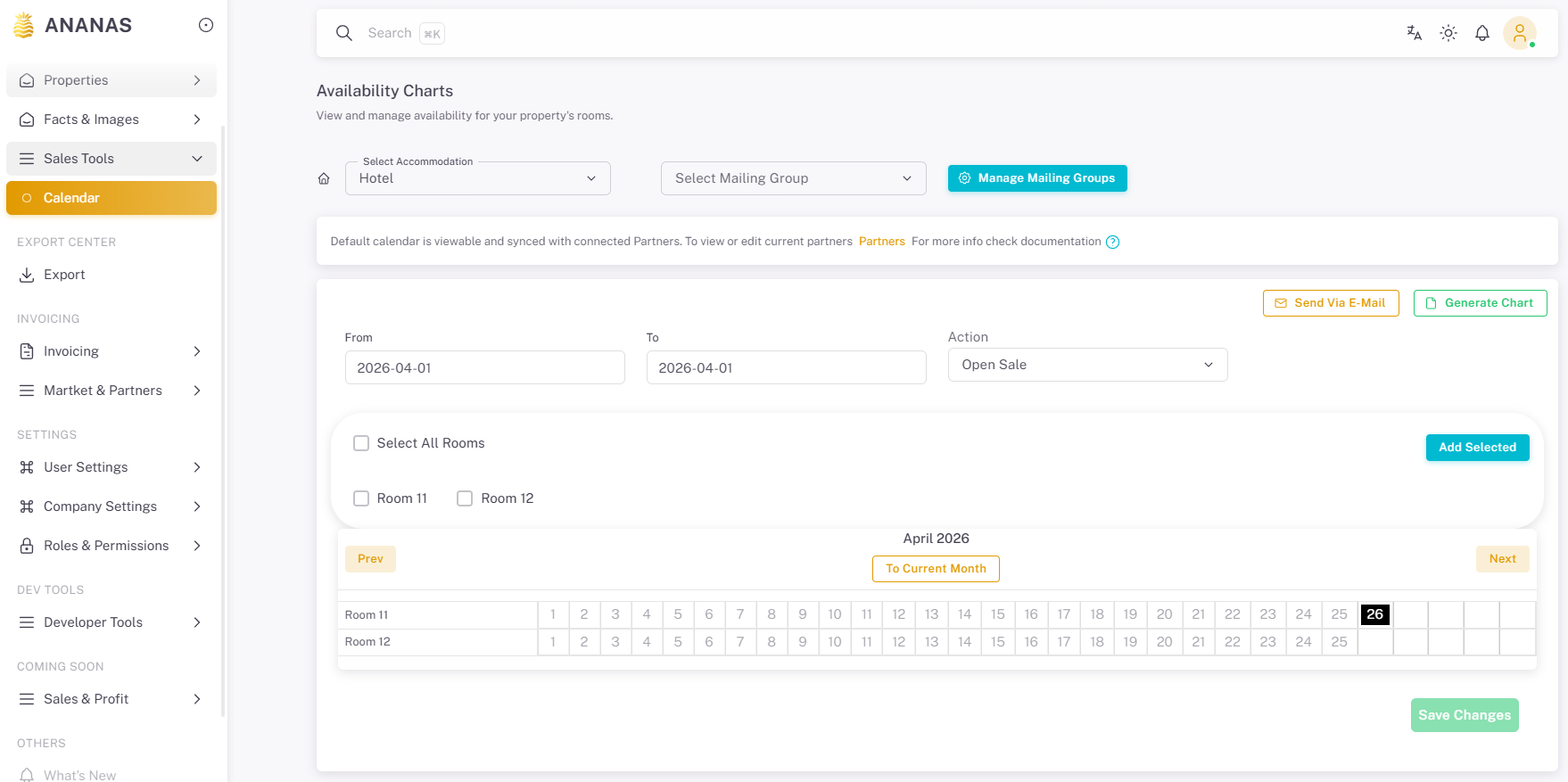
The calendar shows a grid with:
- Rows — Rooms (pulled automatically from the Rooms tab in your published fact sheet)
- Columns — Days (current month and forward)
- Cells — Status for that room on that day
Each cell is color-coded by status (see Status Colors Reference below). Empty cells represent no active status — default open.
Rooms only appear in the calendar after you have published a fact sheet with at least one room defined. If you see an empty calendar, check that your fact sheet is published and has rooms in the Rooms tab.
Updating Day Status
Method 1: Cell Click (Single Day)
- Click any cell in the calendar grid.
- A dropdown context menu appears with status options.
- Select the desired status: Stop Sale, Open Sale, On Request, Blocked, or Delete Event.
- The cell updates immediately and is saved to the database.
Method 2: Mass Update (Range)
Use the Add Selected panel above the calendar to apply a status across multiple rooms and a date range:
- Set the Action (status type).
- Select one or more Rooms using the checkboxes.
- Set the Start Date and End Date.
- Click Add Selected.
This is the recommended method for bulk seasonal updates — for example, blocking all rooms for a renovation period, or opening all rooms for a new season.
Status Colors Reference
Status |
Meaning |
API Value |
|---|---|---|
| Free Sale | Room is explicitly confirmed available for booking without limitations. | free_sale |
| Open Sale | Room is explicitly confirmed available for booking. | open_sale |
| Stop Sale | Room is blocked — no new bookings should be accepted. | stop_sale |
| On Request | Availability is not confirmed — the operator must request and await confirmation before booking. | on_request |
| Blocked | Internal block (e.g. maintenance, owner stay) — not necessarily communicated as stop sale. | blocked |
| No status | Default — no explicit event set for this day. | null |
Distributing the Calendar
A. API (Recommended)
The fastest and most reliable method. Once you save changes, availability data is instantly synced to the database and accessible to all connected partners via the Stop Sale API endpoint — no manual steps needed.
Partners with an active contract can pull the data at any time. See API Requests for the endpoint reference.
B. Group Email
- Select a Mailing Group from the dropdown above the calendar.
- Click Send via E-Mail.
- Confirm the dialog. A PDF of the availability chart (12-month period from current month) is generated and sent to every contact in the selected group.
Note: Only the selected mailing group receives the email. If you have multiple groups (e.g. different operators), you must send separately for each group.
C. Export Center
- Go to Export Center in the sidebar.
- Find the property and click File Actions.
- Select Stop Sale.
- Choose Download PDF or Send via Email.
The generated PDF covers 12 months forward from the current month and includes all rooms and their statuses.
Prerequisites
Before the availability chart is functional, you need:
- A published Fact Sheet with at least one room defined in the Rooms tab — this populates the calendar rows.
- (For email distribution) At least one Mailing Group configured under Settings → Contacts List.
- (For API distribution) An active Partnership Contract with the tour operator. See Partnership.